7 Best Free Image Compressors in 2026 (Ranked by Quality & Speed)

Looking for the best free image compressor? We tested the most popular tools to find out which ones actually deliver on speed, quality, and usability—without hidden limits or annoying upsells.
Quick Comparison - Updated For 2026
For those who need to optimize images immediately without reading the full breakdown:
| Tool Name | Best For... | Max File Size | Batch Limit | Output Formats | |
|---|---|---|---|---|---|
| 1 | LighterImage | Best Overall (Speed + Quality) | 10MB | 30 Images | Original + WebP (Dual Output) |
| 2 | TinyPNG | Casual Users | 5MB | 20 Images | Original Only |
| 3 | Squoosh | Single Image Control | Unlimited | 1 Image | Manual Selection (All) |
| 4 | Compressor.io | High Compression | 10MB | 10 Images* | Original Only |
| 5 | Optimizilla | Slider Control | 5MB | 20 Images | JPG / PNG |
| 6 | Kraken.io | API Testing | 1MB (Free Web) | Quota Limited | Original Only |
| 7 | ILoveIMG | Editing Suite | 200MB (Task Limit)** | 30 Images | Original Only |
*Compressor.io has a strict daily limit of 50 files total. **ILoveIMG imposes a 200MB limit for the total "Task" (all images combined), not per file.
What Makes a Great Image Compressor?
Three factors separate the useful tools from the limited ones:
The Top 7 Tools Ranked
1. LighterImage.com — Best Overall
Highest batch limit and the only tool with automatic dual output.
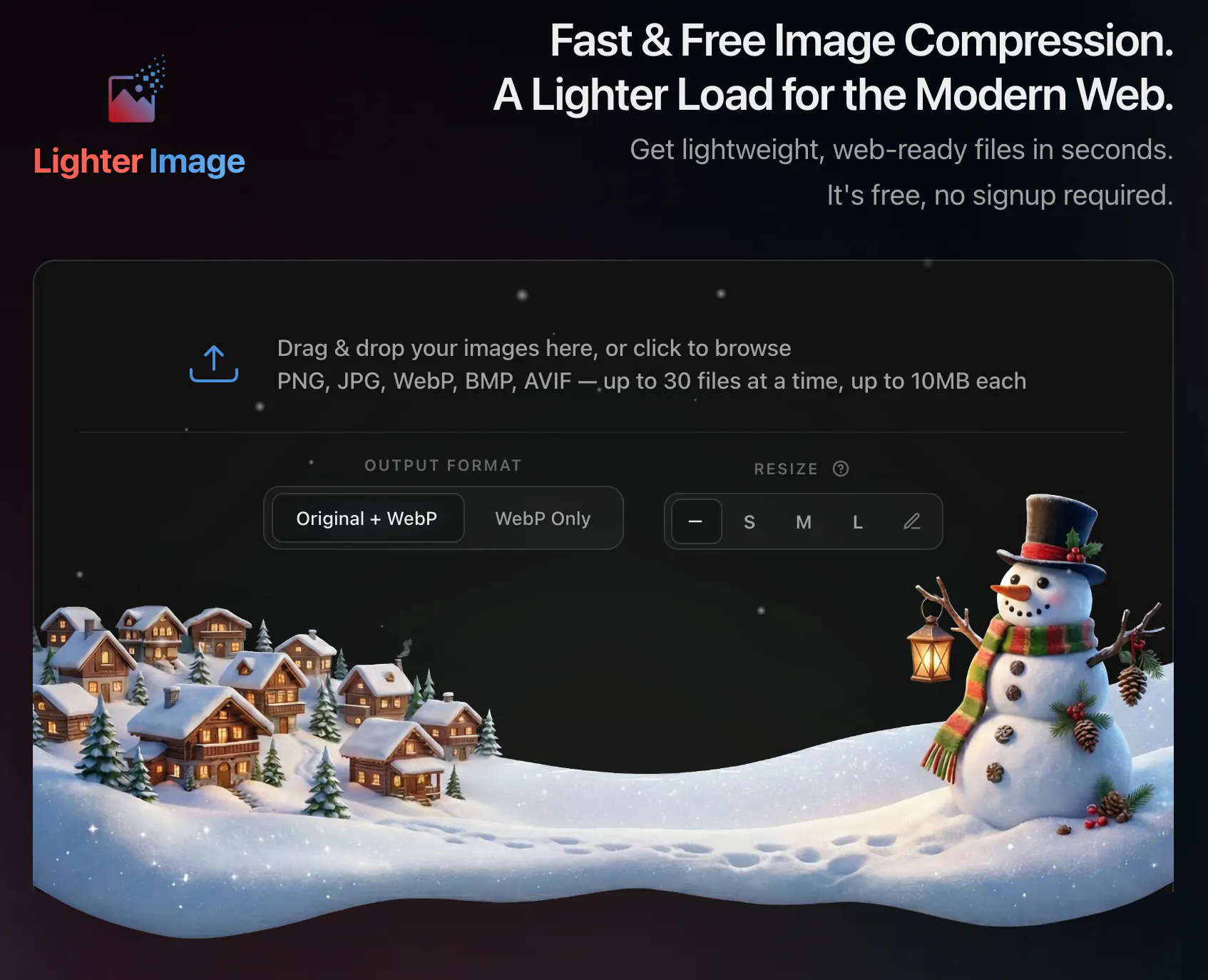
LighterImage accepts files up to 10MB (most competitors cap at 5MB) and processes 30 images per batch. It's entirely free with no account required — the trade-off is no cloud storage, so files disappear after your session.
Dual Output: Every upload produces two files — your compressed original and a WebP version. Other tools on this list require you to pick one format before compression.
Format Support: It accepts almost anything—JPG, PNG, BMP, JPEG, and even AVIF inputs.
Pros: Fast & high quality, generous limits (10MB + 30 images per batch), built-in resizing.
Cons: No cloud storage history (files cleared immediately for privacy).
2. TinyPNG / TinyJPG — Best for Casual Users
The classic choice, reliable but aging.
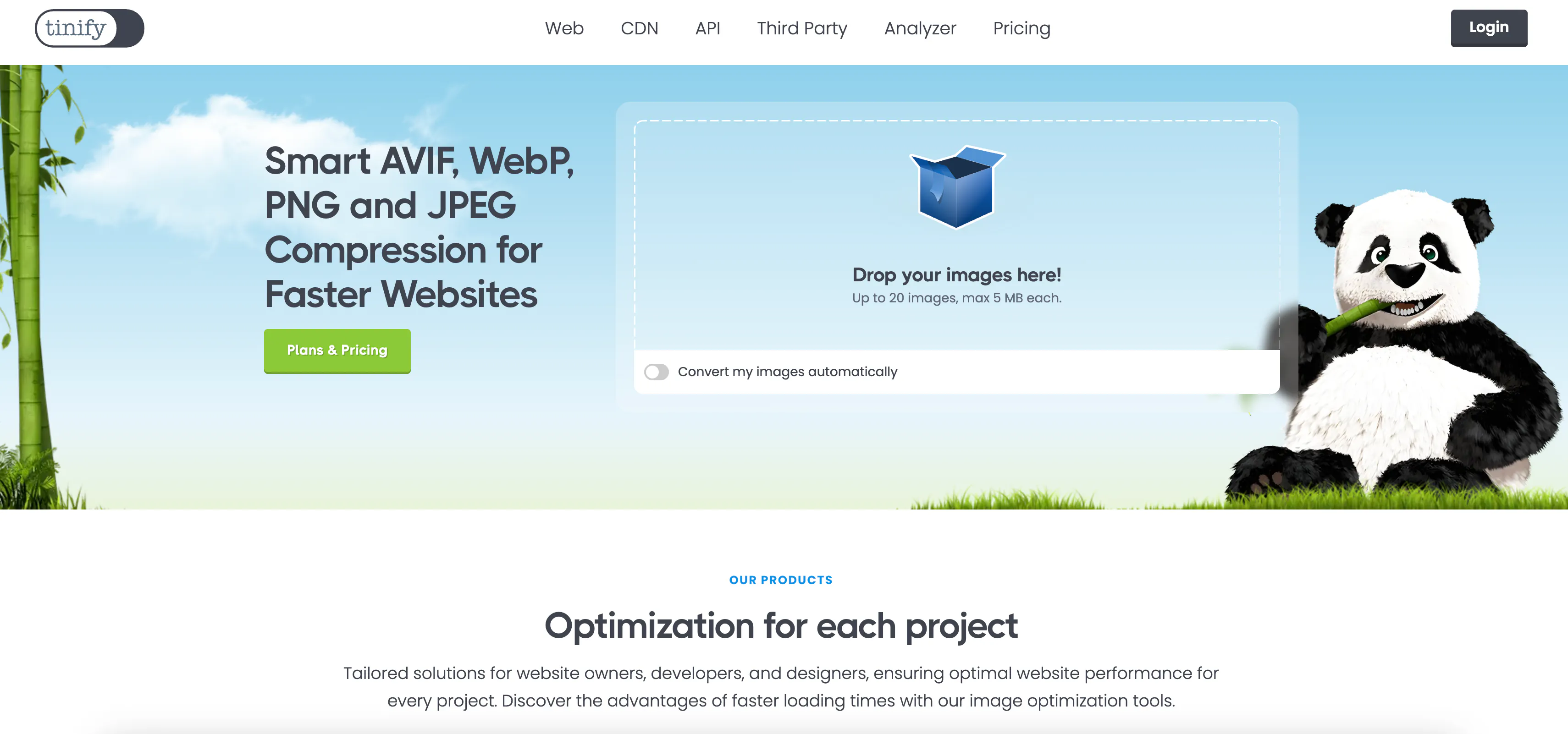
TinyPNG is the most famous name in the game. It uses trusted "smart lossy" compression that works well for beginners. However, its strict 5MB limit has become a major bottleneck for modern high-res photography, and it does not automatically generate WebP versions for you alongside the original.
Pros: Extremely simple interface, trusted brand.
Cons: 5MB limit is too low for raw camera photos, strict 20-file batch limit.
3. Squoosh — Best for Single Images
According to Google's Chrome Labs team, Squoosh was built for granular, pixel-perfect control.
If you need to compress one hero image and want to manually adjust the quality slider to see the exact pixel changes, Squoosh is unbeatable. It supports a massive range of experimental formats (like JPEG XL and OXO). However, it has no batch processing—you have to manually upload and save every single image one by one.
Pros: Infinite control over quality settings, supports experimental formats.
Cons: Painfully slow for more than one image, strictly a single-file tool.
4. Compressor.io — Good for JPGs
Strong compression, but strictly limited.
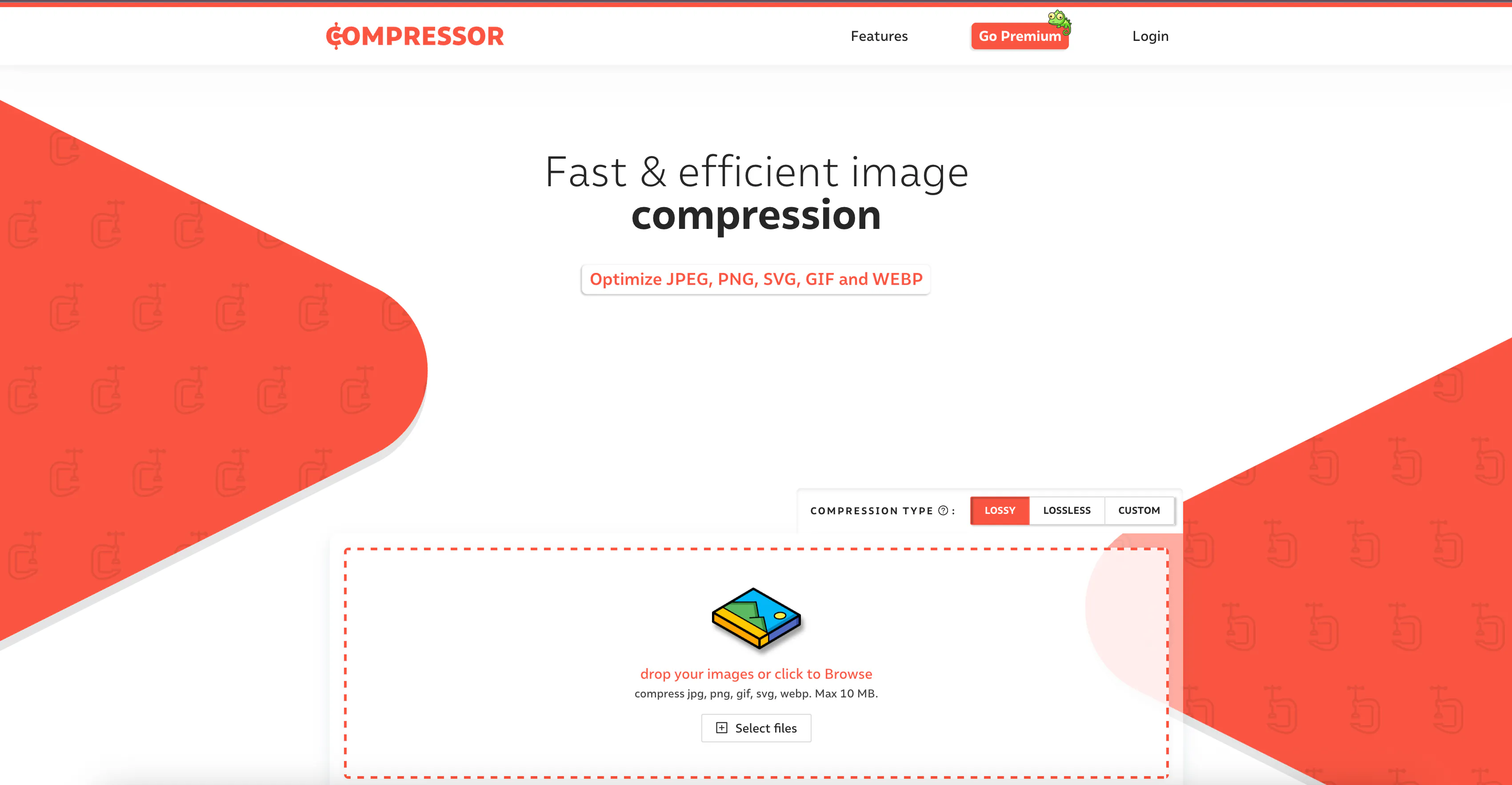
Compressor.io does a fantastic job of shrinking JPGs and PNGs. However, the free version is heavily restricted. You can only upload 10 images at a time, and you are capped at 50 compressions per day. If you are optimizing a full eCommerce catalog, you will hit this wall in minutes.
Pros: Excellent compression ratios.
Cons: 50 image/day hard limit, batch uploads limited to 10 files.
5. Optimizilla — Best for Slider Control
The middle-ground option.
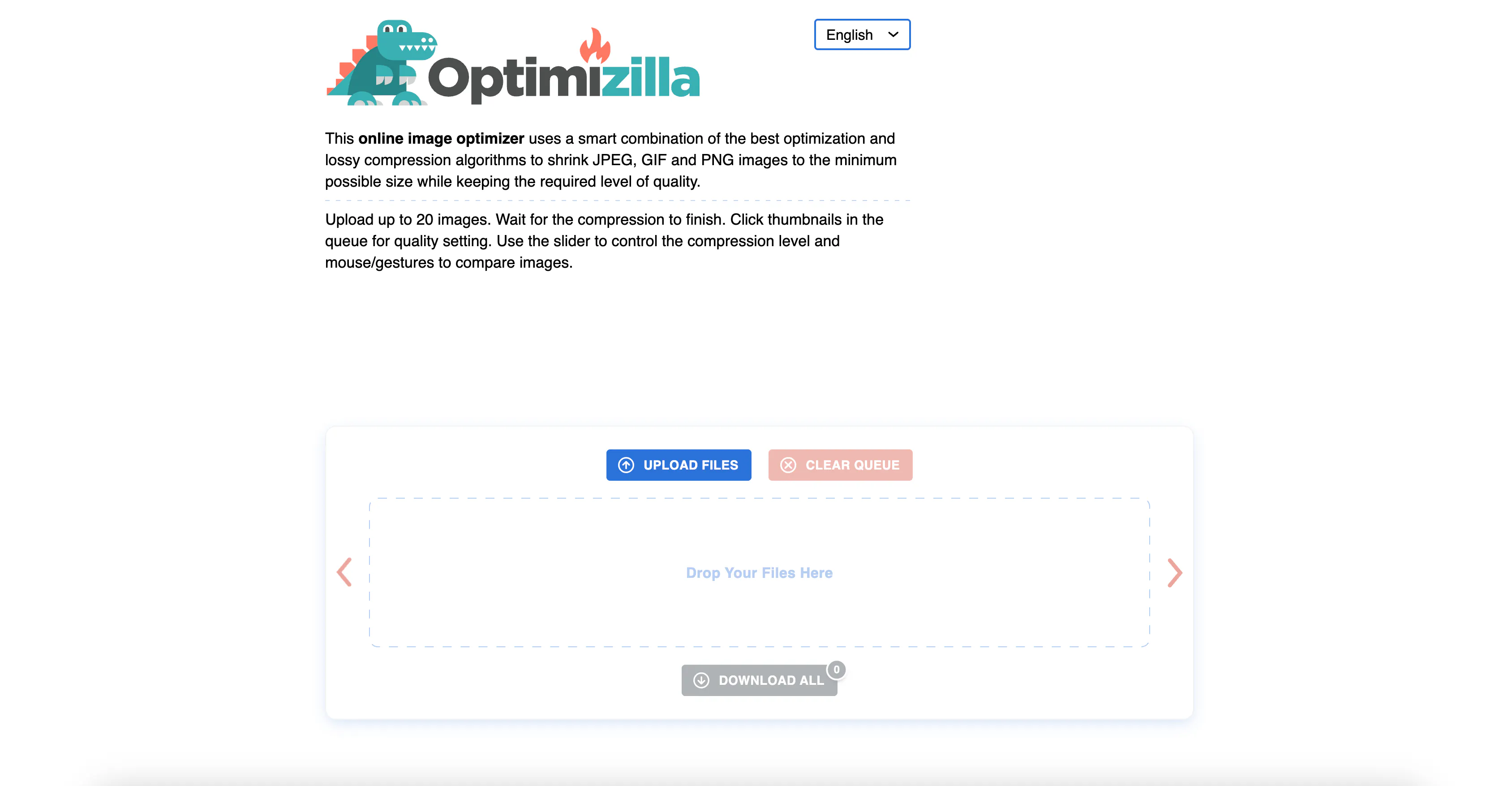
Optimizilla offers a "quality slider" for batch uploads, allowing you to tweak the compression level of multiple images at once. The 20-image upload limit is standard for this tier, and output is limited to the original format — no automatic WebP generation.
Pros: Slider control for bulk images.
Cons: No automatic WebP generation, limited batch size.
6. Kraken.io — Best for API Users
A developer-first tool.
Kraken is famous for its API, but its free web interface is incredibly restrictive. It limits free users to just 1MB file sizes in many cases. It is a demo for their paid product and not viable for general users.
7. ILoveIMG — Good for Editing, Not Compressing
A "Swiss Army Knife" for edits, but inefficient compression.
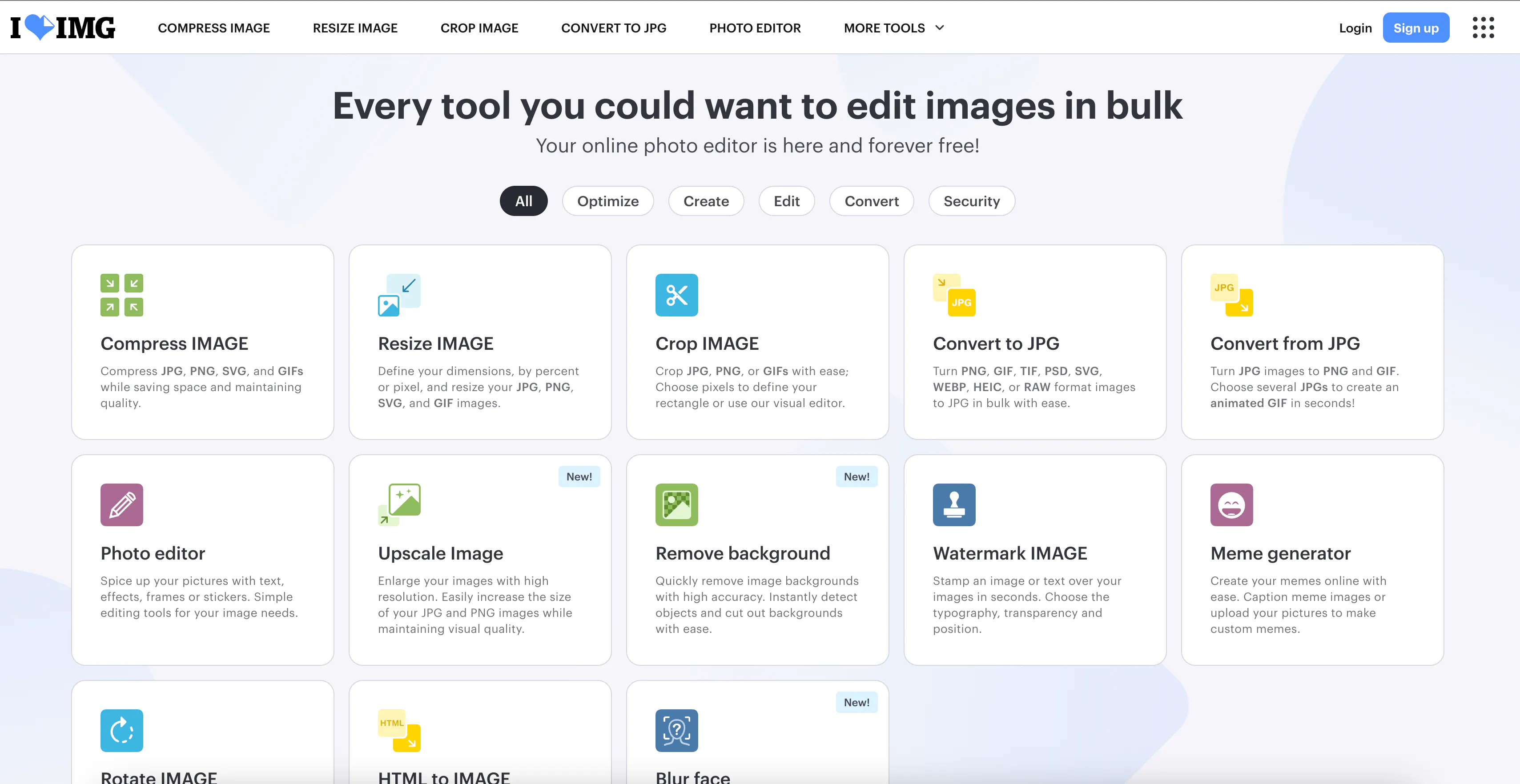
If you need to crop, watermark, and compress, ILoveIMG is a handy suite of tools. However, as a pure compressor, it prioritizes safety over savings. In our tests, it often resulted in larger file sizes than competitors to "preserve quality," meaning you don't get the speed boost your website needs.
Final Verdict
- If you have one image to edit: use Squoosh.
- If you have a small blog: TinyPNG is fine.
- If you need batch processing with WebP output: LighterImage handles 30 files at once with dual-format output.
Frequently Asked Questions
How do I compress images without losing quality?
You need a tool with high-quality "Smart Lossy" algorithms (like LighterImage). These tools selectively decrease the number of colors in the image, which saves 60-80% of the file size while remaining virtually invisible to the human eye.
Why is WebP important?
WebP is the current standard for the web. It is widely supported by browsers and offers superior compression to JPG. Using WebP images is one of the fastest ways to improve your Google PageSpeed score.
Can I convert AVIF files?
Yes! LighterImage accepts AVIF files as input and can convert them into widely compatible WebP files, ensuring your images work on every device.
References
No signup required. Compress up to 30 images at once and get automatic WebP versions.